 Great
Great  238 reviews
 How To Clean and Free Up Space on Your PC?
Over time, your PC becomes cluttered with unnecessary files, system junk, old downloads, temporary data, unused apps, & startup programs. This results in low storage space, increased boot times, & a decline in overall PC speed and performance. With Advanced PC Cleanup detect and fix these problems effortlessly in one click. Try it today!
For Windows 11, 10, 8.1, 8 & 7
60 Days Money Back Guarantee
Why Do You Need A PC Cleanup Solution?
To boost PC speed, improve performance, prevent overheating, and address other common PC issues, a PC cleanup tool is necessary.
From downloading apps to watching movies, playing games, creating projects, uninstalling apps, and performing various tasks PC is used. These activities leave digital clutter behind like junk files, invalid registry entries, temporary data, saved browser history, and outdated downloads. You can clean it manually if you know how to, but there’s always a risk.
That's when tools like Advanced PC Cleanup come into play. Designed to quickly find and clear out junk files, temporary data, invalid registry entries, identity-exposing traces, malware, update drivers, uninstall apps, manage old downloads, and large files. This tool provides reliable PC optimization by removing cluttered data and malware threats, while minimizing privacy risks.
How To Keep Your PC Clean, Optimized, Secure, And Malware Free In One Click?
Keeping a PC free from junk files and unnecessary cluttered data is not easy. From cleaning the invalid registry to updating drivers, removing malware, and trying to free up space and boost PC speed, you spend hours, and still, not much is achieved.
Luckily, with Advanced PC Cleanup, an all-in-one PC cleanup tool, you don’t have to worry about all this. From cleaning system junk to protecting from malware, removing old downloads, uninstalling apps, and updating drivers, it does it all.
Once installed and running on your system, without the need for a separate cleaning and data protection tool, you can enjoy smooth PC performance. The tool quickly fixes slowdowns, reclaims disk space, and secures your PC.
Just click the 'Download Now' button and follow the steps below:
For Windows 11, 10, 8.1, 8 & 7
60 Days Money Back Guarantee
Step 1 - Download & Install Advanced PC Cleanup
Download the setup file and double-click it to run the installer. Follow the on-screen instructions to install the cleanup tool on your Windows system.
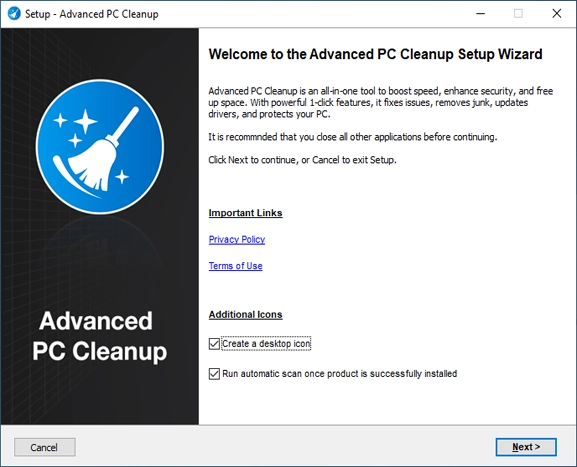
Step 2 - Run a Full System Scan
After finishing the installation, run Advanced PC Cleanup. Click the "Start Scan Now" button from the welcome screen to scan the PC for junk files, registry errors, temporary files, malware, identity traces, and outdated drivers.
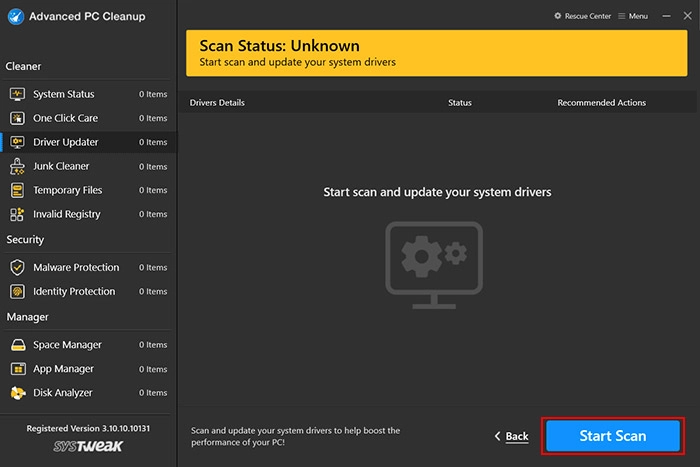
Step 3 - Review Scan Results
Once the scanning is complete, you will get a categorized, detailed scan summary of the problems detected, with the total amount of space you can recover. Review them and fix the errors. To learn more about them, click on the individual modules.
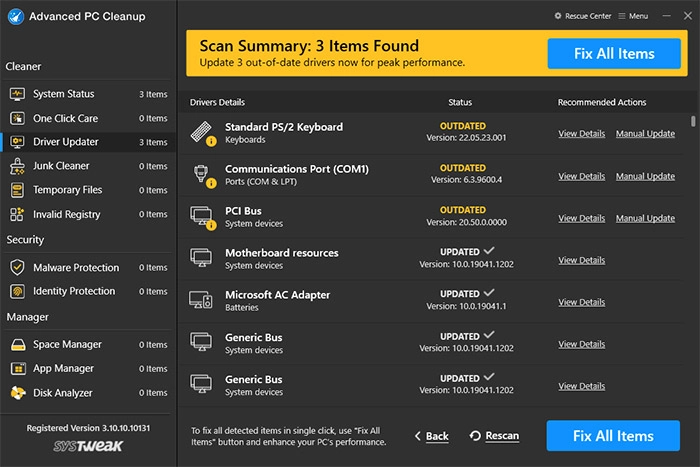
Step 4 - Fix All Issues in One Click
Click “Fix All Items” to remove everything and optimize your PC. The tool will delete junk files, temporary data, invalid registry entries, identity traces, malicious infections, and update drivers.
Once all errors are fixed, restart your PC and enjoy working on a faster and optimized PC with more free space.
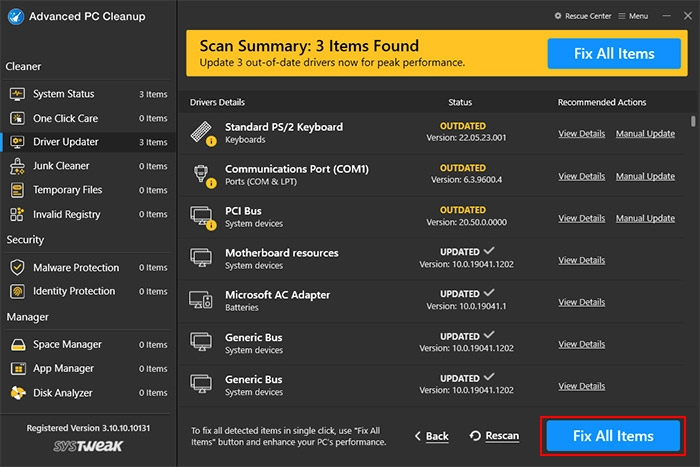
Cleaning up a PC manually is time-consuming and complicated. So why bother yourself with this frustrating and confusing task?
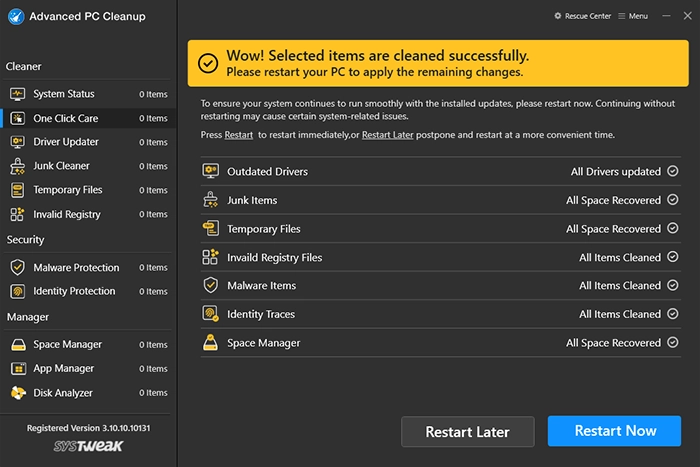
Use Advanced PC Cleanup and simplify the process. In one click, detect and fix all the issues.
Enjoy enhanced productivity with flawless PC performance.
For Windows 11, 10, 8.1, 8 & 7
60 Days Money Back Guarantee

