Home / User Guide / Product Features / Driver Updater
Driver Updater
This module scans your PC for outdated and problematic drivers that interfere with the proper functioning of hardware and can sometimes be responsible for BSOD, system freezes, and crashes.
How To Update Outdated Drivers On Windows?
To update and install WHQL-certified drivers on Windows, follow these steps:
1. Click Driver Updater.
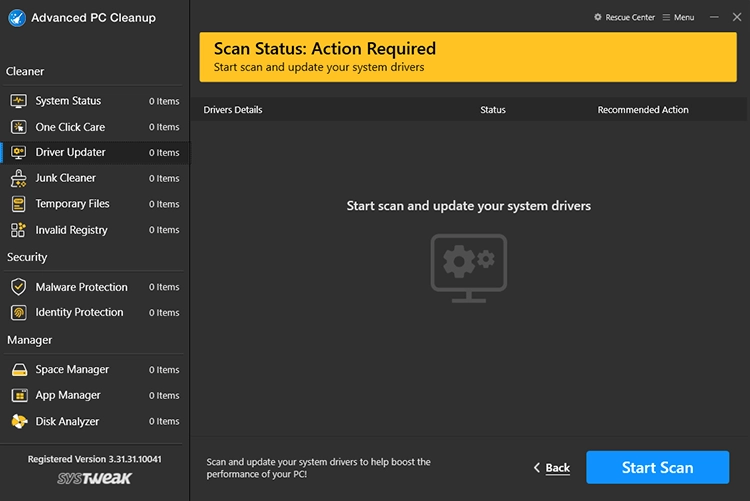
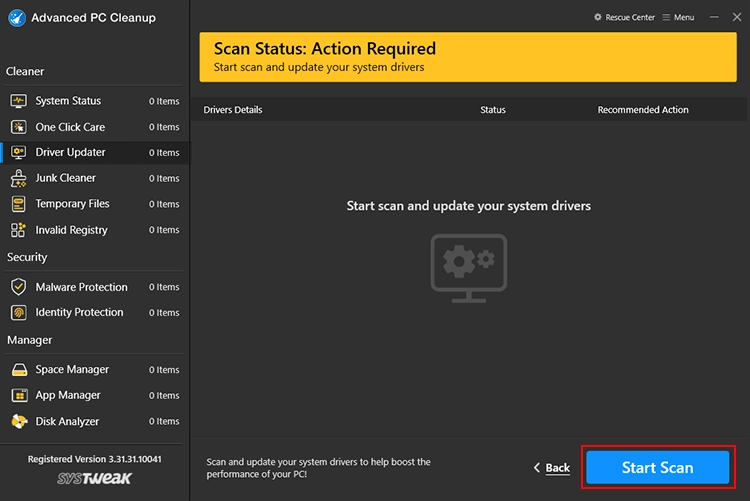
2. Click "Start Scan" to identify outdated drivers.
3. Let the scan finish.
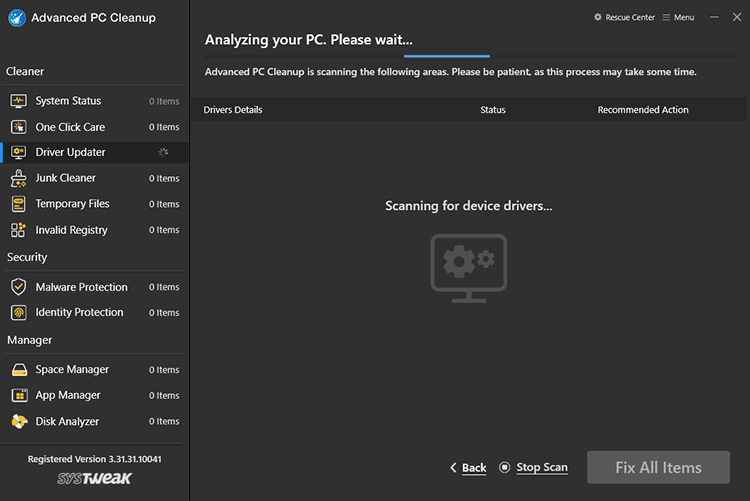
4. Once it is done, you will get a list of outdated and updated drivers with their details, status and recommended action.
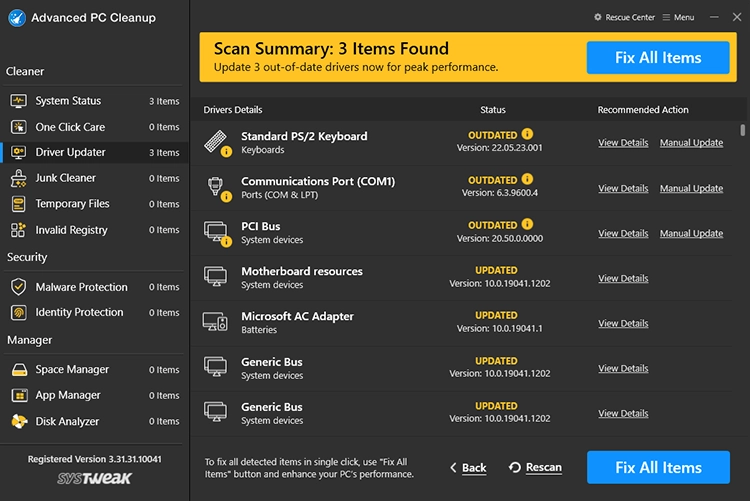
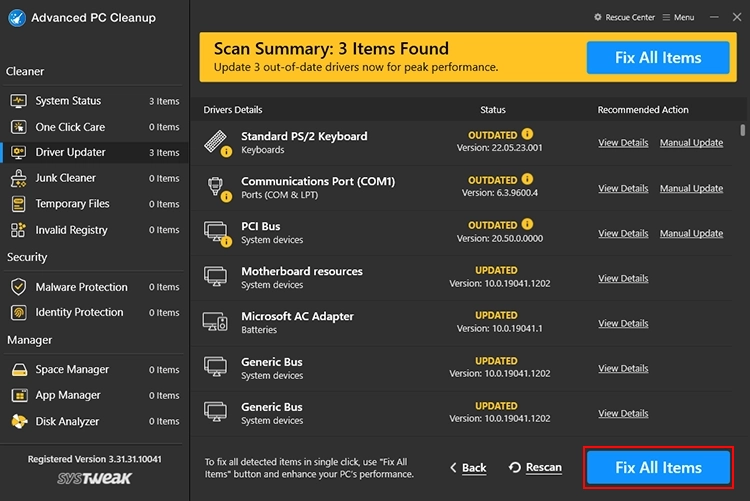
5. To update an individual driver, click Manual Update next to each driver. However, to update all drivers at once and save time, click Fix All Items.
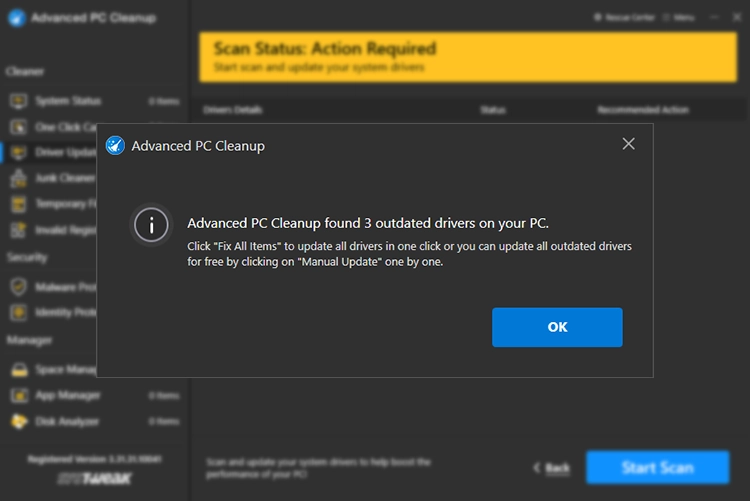
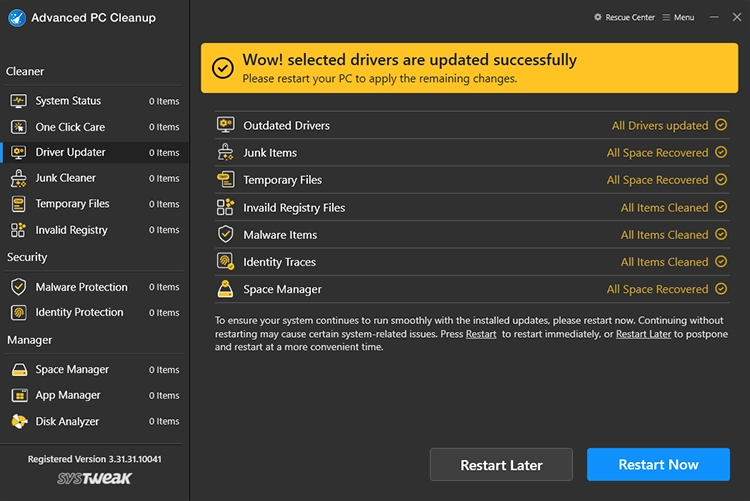
6. Restart the PC to apply changes. This will help fix all driver-related issues.