Home / User Guide / Product Features / Space Manager
Space Manager
This module helps you locate and delete old downloads and large files that occupy unnecessary space without your knowledge. To clean these files, follow these steps to run the module.
How To Free Up Space On Windows?
To free up space using Advanced PC Cleanup, follow these steps:
1. Run Advanced PC Cleanup.
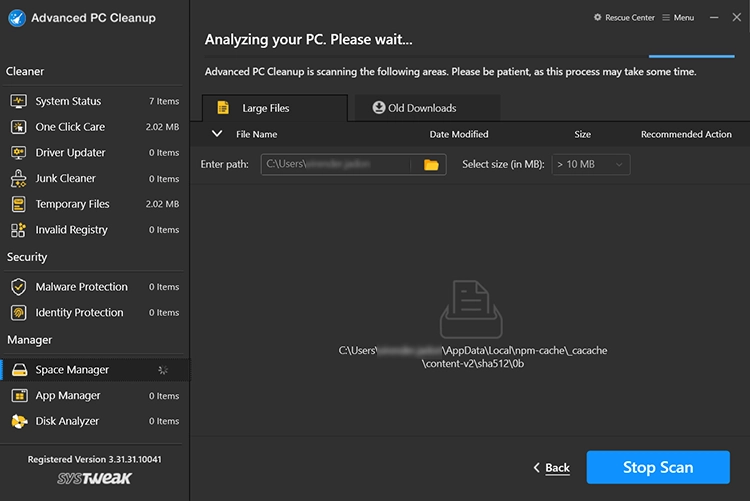
2. Click Space Manager and then click the "Start Scan Now" button.
3. Wait for the scan to finish.
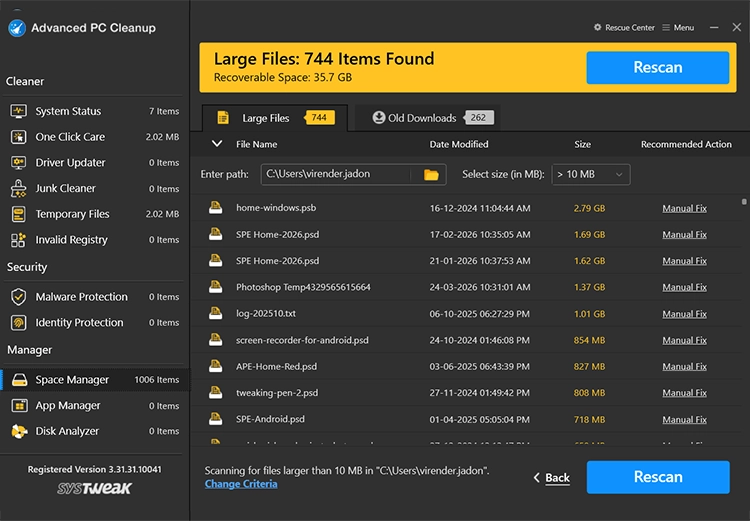
4. Once it is done, you will see the scan results divided into two tabs: Old Downloads and Large Files.
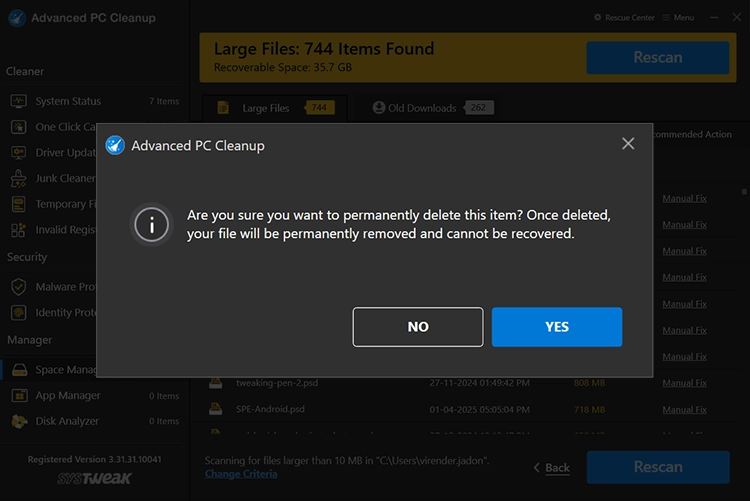
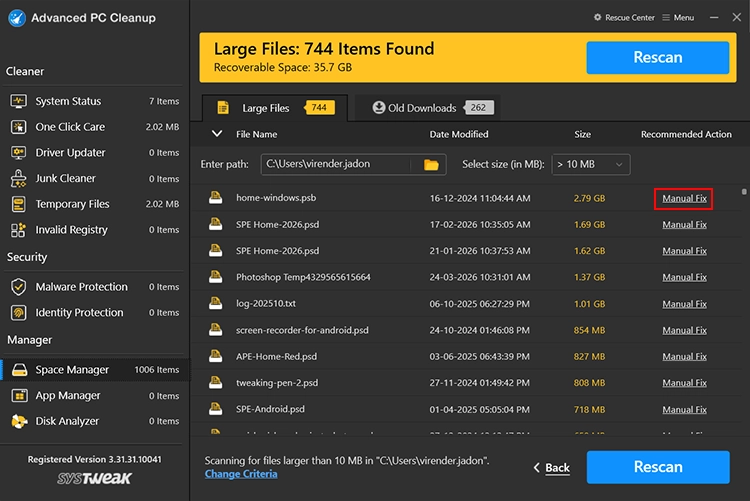
5. Review the scan results, each displayed with File Name, Date Modified, Size, and Recommended Action
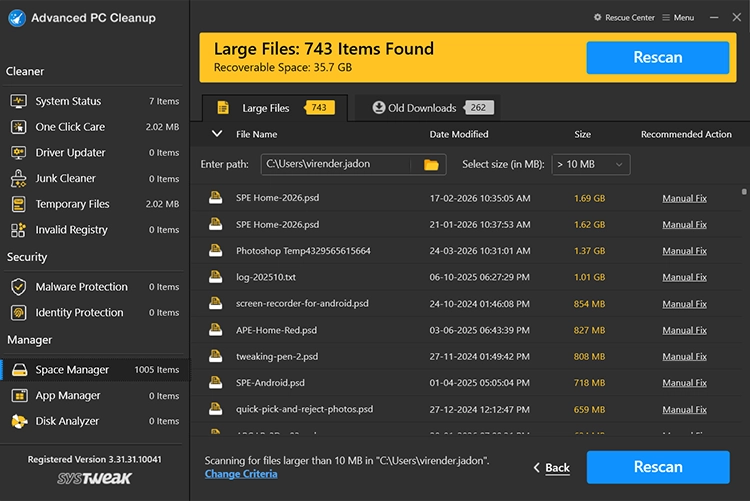
Click Fix All Items to clean them.
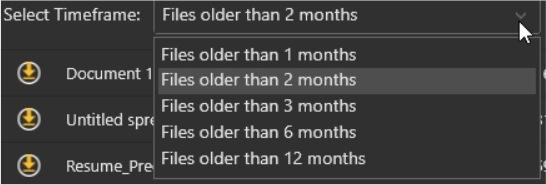
bvUnder the Old Download tab, you have the option to choose the time frame for listing the files. By default, it shows 2-month-old files. To change it, click the down arrow, and from here you can select
Files older than 1 month
Files older than 2 months (default)
Files older than 3 months
Files older than 6 months
Files older than 12 months
Large Files - This section lists large files such as installers, videos, archives, and backups that you may no longer need. To remove them, click the Large Files tab. By default, you see files > 10 MB, but you can change this by clicking the down arrow next to Select size (in MB).
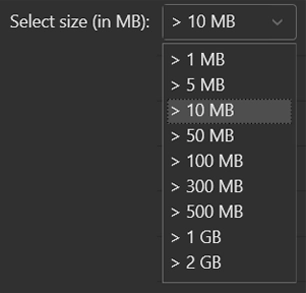
Also, you can change the location that it scans to list large files by clicking the Browse button next to Enter path

Once you have made the changes, review the scan results and click 'Fix All Items' to remove them.